xeokit Performance and Memory Trade-offs

Introduction
It is a challenge to display hundreds of thousand of elements in the web browser. It can end up with hitting one of the bottlenecks, depending on the BIM model itself or the device which runs our viewer. xeokit SDK has several settings which can help you choose different strategies to try to overcome these limitations.
This article focus on 2 parameters:
- dtxEnabled parameter in the Viewer,
- reuseGeometries parameter in the XKTLoaderPlugin.
Regarding dtxEnabled: xeokit has 2 different shader techniques available: VBOs and DTX. Setting this parameter determines which technique you'd like to use. If you want to learn more about DTX mode, please see the article here: https://xeokit.io/blog/compact-model-representation-using-data-textures/.
Regarding reuseGeometries: this parameter let you choose if you'd like to use model's instancing structure (reuseGeometries: true) or to ignore the instancing, and create batches instead (reuseGeometries: false). Starting from the version 2.6.112 (https://github.com/xeokit/xeokit-sdk/releases/tag/v2.6.112) you can also pass here a function to allow expressing a conditional strategy. In this article I've decided to not address this new approach yet.
Setting these 2 parameters lead to different results in terms of:
-
Performance during navigation (measured in FPS)
-
JS heap size
-
GPU memory usage
-
Model loading time
To simplify the problem, 3 choices will be presented here:
- VBO (dtxEnabled: false) + reuseGeometries: false
- VBO (dtxEnabled: false) + reuseGeometries: true
- DTX (dtxEnabled: true)
Comparison table
After comparing plenty of different demanding BIM models my conclusion was that it more or less works like this:
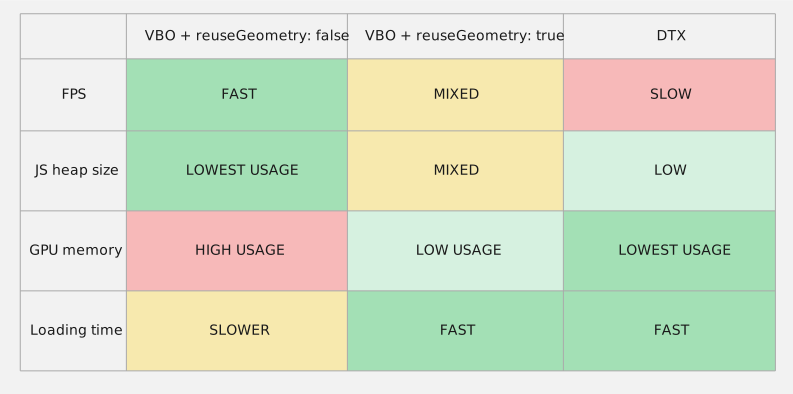
I'd explain this table further in the article.
Performance during navigation (FPS)
This section is about the performance when you rotate the model, when you want to move around it, when you zoom into specific elements. In other words: usual end user behavior when analyzing a BIM model.
It is an important factor, because we want to have ability to move around the big models in a comfortable way.
Because of the nature of the DTX technique, it leads to worse results in terms of FPS if you compare it to the standard VBOs in most cases.
So once you switch to using VBOs for better performance you can pick how to set the reuseGeometries parameter. For most models setting reuseGeometries to false led to better performance. It's because no matter how model is organized in instances, it still ignores it and use batching strategy instead to minimize number of draw calls.
reuseGeometries: true was marked in the table as mixed, because then the performance is related to the model organization itself. So some of the models had better and some other have worse performance, and it was quite difficult to obtain which one will end up with which results.
JS heap size
Reducing JavaScript heap size is important, because the size can affect the performance of the application or even ends up with the out of memory error.
JS heap size was quite low in 2 scenarios: VBO + reuseGeometries: false and when using DTX. It was mixed when setting VBO (dtxEnabled: false) + reuseGeometries: true.
GPU memory
Reducing GPU memory size is important, because if the size is too big it can end up with errors like WebGL context lost.

Here is where DTX mode shines: this technique specifically tries to reduce this problem.
If we talk about VBO mode, then setting reuseGeometries: true should be slightly worse than using DTX.
The worst results gives setting reuseGeometries: false with VBOs, because this requires to duplicate all the geometries (even if they were deduplicated at some stage previously, like e.g. during cxconverter conversion).
Loading time
We're talking here about the time needed to load the model into the scene. This parameter is important, because waiting too long for the model to show might be annoying to end user or might be confusing to end user, as she/he can be confused if the model is still being processed. However some of the users seems to prefer slower loading if this would mean e.g. better runtime performance.
If it's an essential to load the model fast in your case, then if you're using VBO mode: try setting the reuseGeometries to true.
VBO mode + reuseGeometries: false looks worse, because during the loading it has too additionally create the batches to reduce the number of draw calls.
Conclusions and disclaimer
As you can see, there are some trade-offs for any of these techniques. Depending on the model or the device you're running on: different strategy can end up with different results. This article is the result of many hours of testing and measuring different parameters, however it is possible that in your case you will hit different bottlenecks with different setups or models, so we cannot guarantee this will look the same in every case. We also continue to look for other improvements. Because of this if you will have any problematic models to share, or any other observations: please let us know.